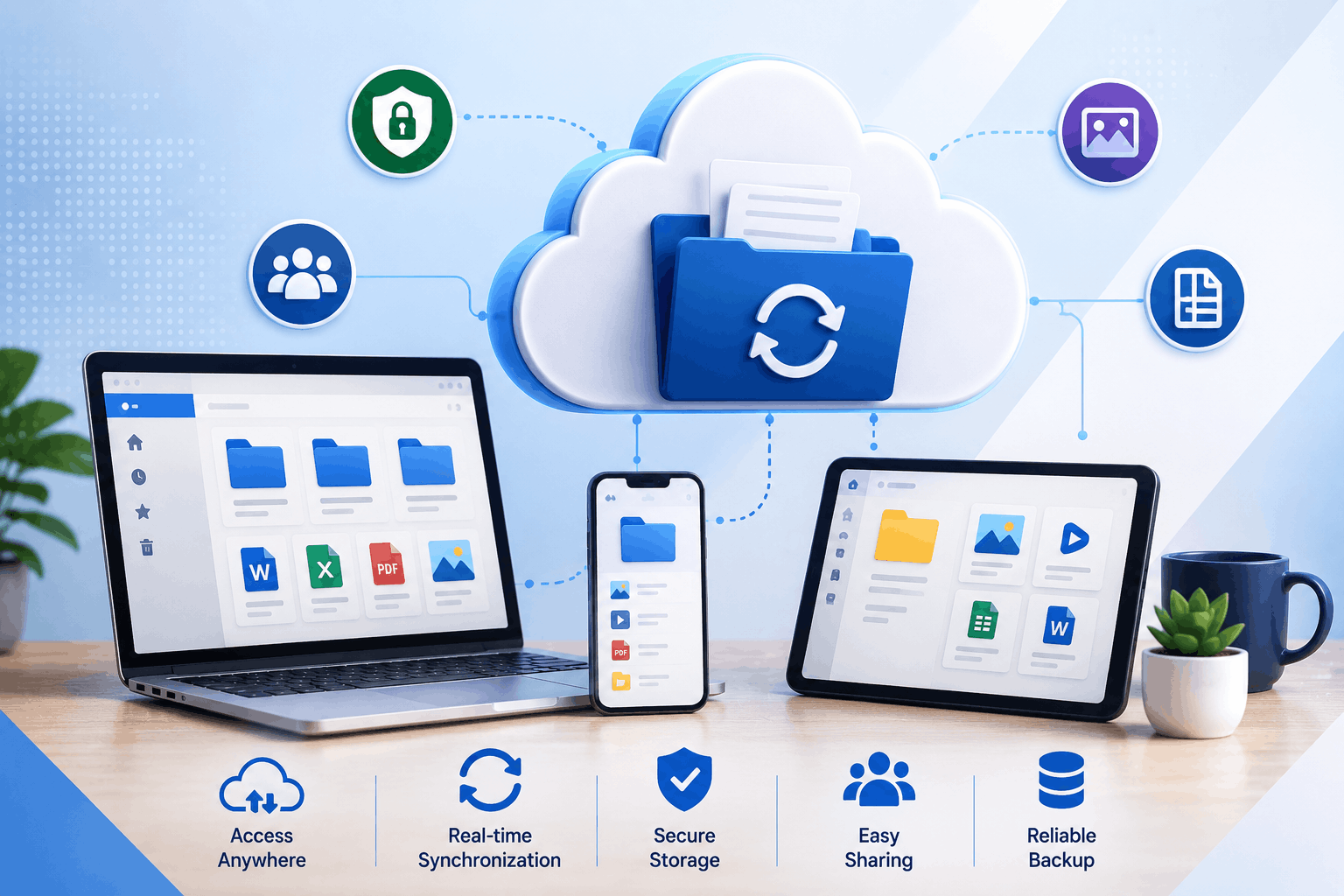
A designer saves a 2GB project file on a laptop. A week later, the laptop stops working. The file is still recoverable if it was copied somewhere else, but that “somewhere else” is often another hard drive, an email attachment, or a folder nobody remembers creating. Cloud based file storage changes that routine by keeping files on remote servers so people can reach them through the internet instead of depending on one physical device.
That sounds simple.
It is.
But the useful part isn’t just having another place to put documents. Teams can open the same files from different devices, share folders without sending endless attachments, and keep working when they’re away from the office.
For businesses with remote employees, freelancers, clients, and outside partners, that difference can become noticeable very quickly.
What Is Cloud Based File Storage?
With cloud based storage, files are kept on servers managed by a storage provider rather than sitting only on a computer or office server.
You upload a document.
The provider stores it.
You sign in from another device.
The file is available there too.
The physical servers still exist somewhere. “Cloud” doesn’t mean the files float around without hardware. It simply means the user doesn’t have to manage that hardware directly.
This setup works for ordinary documents, large media files, spreadsheets, presentations, PDFs, project folders, and other digital content.
A small marketing agency, for example, might keep campaign assets in shared cloud folders instead of passing updated files between employees through email.
That removes one common headache: figuring out which attachment is the latest version.
Why Teams Move Away From Local File Storage
Local storage isn’t useless.
A laptop drive is fast and convenient. An external drive can hold a large amount of information without a monthly subscription.
The trouble starts when several people need the same files.
Imagine five employees working on a client project. One has the original presentation, another has an edited copy, and a third has a version with the newest pricing details.
Now someone has to ask:
“Which file should I use?”
That question gets old.
A shared cloud based file storage system gives everyone access to the same central location, subject to the permissions set by the account owner or administrator.
It also makes remote work less dependent on a particular computer.
If an employee changes laptops, the files don’t have to move with the old machine.
File Access Is Only Half the Story
People often think of cloud storage as an online hard drive.
That’s only part of it.
Most modern services also include sharing and synchronization features.
A team member can work on a document at home, another person can access the file from an office computer, and someone else can review it from a phone.
That leads to the second important search term: cloud based file storage and synchronization service.
Synchronization keeps selected files or folders available across connected devices. When a file changes, the service can update the stored copy and, depending on the setup, reflect that change on other connected devices.
This is especially useful for people who regularly switch between a desktop, laptop, and mobile device.
Without synchronization, users may have to remember which machine contains the newest copy.
With it, the current file is much easier to find.
Cloud Based File Storage for Remote Teams
Remote work exposes the weaknesses of old file-sharing habits.
Sending a 30MB presentation through email isn’t pleasant.
Sending five revisions is worse.
Then there are ZIP files, renamed attachments, and messages such as “final_v2_revised_FINAL.pptx.”
Everyone has seen some version of it.
A shared cloud based storage folder gives a distributed team one place to work from.
A sales representative can open the latest proposal while visiting a customer.
A designer can upload a new brochure without sending it to every colleague.
A manager can review documents without waiting for someone to copy them to a USB drive.
The benefit isn’t complicated technology.
It’s fewer unnecessary steps.
What Happens When Someone Deletes a File?
Deletion is one of the first things worth checking before choosing a storage service.
Accidental deletion happens.
So does accidental replacement.
A team member might remove a folder while cleaning up an account. Someone else might overwrite a document without realizing another person still needs the older version.
Many cloud storage services offer features such as trash folders, file recovery, or version history, although the exact rules differ between providers.
That distinction matters.
A service that keeps deleted files for 30 days isn’t the same as one that keeps them for 90 days.
Version history can also vary by plan.
For business users, those details deserve attention before moving important files into a new system.
Cloud Based Photo Storage Has Different Demands
Photos create a different storage problem.
A phone can collect thousands of images surprisingly quickly, especially when people take high-resolution photos or record video.
That makes cloud based photo storage useful for photographers, content teams, families, retailers, and businesses that regularly handle visual media.
Photo storage needs aren’t identical to document storage.
Search matters more.
Previewing images matters more.
Automatic uploads from mobile devices can matter a lot.
Storage capacity matters too because a few thousand high-resolution images can consume space much faster than ordinary text documents.
For a marketing team, this might mean storing product photography, social media graphics, event pictures, and campaign assets in one shared location rather than scattering them across phones and personal computers.
Security Should Be Checked Before Convenience
Putting files online doesn’t automatically make them secure.
The provider matters.
So do the account settings.
Look for features such as encryption, multi-factor authentication, access permissions, activity logs, and recovery options.
A business shouldn’t give every employee access to every folder simply because the storage platform makes sharing easy.
A finance folder may contain payroll information.
A human resources folder may contain employee records.
A sales folder may contain contracts and customer documents.
Those files don’t all need the same access rules.
Good permission controls let administrators decide who can view, edit, download, or share particular files.
Storage Capacity Can Become a Quiet Problem
A company may start with a small amount of storage and feel comfortable for months.
Then the media files arrive.
Product videos.
Raw photographs.
Design files.
Meeting recordings.
Backup archives.
Storage consumption can rise quickly.
Before selecting a provider, check how storage limits work. Some services offer fixed amounts per user, while others provide pooled storage across an organization.
Also check what happens after the limit is reached.
Does the account stop accepting files?
Does the business need to purchase additional capacity?
Are there restrictions on large individual files?
These questions are easy to ignore when an account is new and nearly empty.
They become much more important after a year of accumulated work.
Sharing Files With People Outside the Company
External sharing is another reason businesses use cloud based file storage.
A company may need to send a proposal to a client, provide artwork to a printer, or give a contractor access to project documents.
Email attachments aren’t always the best answer.
A shared link can be simpler, particularly when the file is large.
But links need controls too.
Depending on the service, administrators may be able to require sign-in, set expiration dates, restrict downloads, or limit access to specific people.
Those settings can prevent a file intended for one client from quietly becoming accessible to anyone who receives the link.
The Device Doesn’t Matter as Much Anymore
One of the practical reasons people adopt cloud based storage is freedom from a single machine.
The office desktop isn’t the only place where work happens.
Employees may use Windows PCs, Macs, tablets, or smartphones.
A cloud account can provide a common location across those devices, assuming the service supports the operating systems and applications the team actually uses.
That doesn’t mean every file should automatically be downloaded everywhere.
Selective synchronization can help keep large folders off devices that don’t need them.
For teams dealing with huge video libraries or design archives, that can save local storage without cutting off access to the files.
Cloud Storage Doesn’t Replace Backups
This is an easy mistake to make.
A cloud storage account can protect against a failed laptop, but it isn’t necessarily a complete backup system.
If ransomware encrypts synchronized files, those changes may potentially sync to other devices too, depending on the service and configuration.
If an employee deletes an important folder and the retention period expires, recovery may not be possible.
Businesses handling important records should therefore understand the difference between file storage, synchronization, and backup.
They overlap.
They aren’t identical.
That distinction becomes increasingly important as more company information moves away from local computers and office servers.
How to Choose Cloud Based File Storage for a Business
Choosing a storage service based only on the amount of space included can cause problems later.
A company might get 2TB of storage and assume the decision is finished.
It isn’t.
The better questions are about how people actually work.
Do employees need automatic synchronization?
Will clients receive shared links?
Does the business need version history?
Can administrators control access by user or group?
Are files encrypted?
Can employees recover deleted information?
Does the service work properly with the applications already used by the team?
A photographer and an accounting firm may both need 2TB, but their requirements are completely different.
Storage capacity is just one line on the comparison sheet.
Check How File Synchronization Actually Works
Synchronization sounds straightforward until large folders enter the picture.
Imagine a designer has a folder containing 80GB of images. The entire folder doesn’t necessarily need to live on every computer.
A useful cloud based file storage and synchronization service may allow selective synchronization, online-only files, or similar controls.
That means the user can see the folder without keeping every file on the local drive.
This can be helpful for teams working with large media libraries.
It also reduces the chance of filling a laptop’s storage with files that haven’t been opened in months.
Before choosing a service, check whether synchronization works the way your team expects.
Some platforms are designed primarily around web access.
Others are built around desktop folders that behave almost like ordinary local directories.
That difference can affect how quickly employees accept the new system.
File Versioning Can Save More Than Storage Space
Consider a spreadsheet used by a finance team.
Someone updates a formula.
Another person opens the document later and notices that a number no longer looks right.
Without version history, the team may have to reconstruct what changed.
With versioning, an administrator or authorized user may be able to review earlier copies and restore the required version.
The exact retention period depends on the service and subscription plan, so it should be checked before relying on it.
For businesses where documents change frequently, version history can be one of the more useful features of cloud based storage.
It’s also something users tend to appreciate only after something goes wrong.
Permissions Should Follow the Job
A common mistake is creating one shared folder and giving everyone full access.
It’s easy.
It also creates unnecessary risk.
A sales employee doesn’t normally need access to payroll records.
A freelance designer may need access to a campaign folder but not the company’s financial documents.
An external contractor might need to download project files without being able to edit everything inside the account.
Good access controls allow permissions to match those responsibilities.
Look for options such as user roles, group permissions, read-only access, editing rights, and restrictions on external sharing.
The goal isn’t to make file access difficult.
It’s to stop one compromised account from opening the door to everything.
Cloud Based Photo Storage Needs Search and Organization
Businesses that work with images quickly discover that storage space isn’t the only issue.
Finding the right photograph can take longer than uploading it.
A content team might have thousands of product images spread across several folders.
A retailer could have separate images for seasonal campaigns, product launches, social posts, and advertisements.
That’s where cloud based photo storage can become more useful when it includes good search and organization features.
Depending on the service, users may be able to search by file name, folder, date, or other information attached to the image.
Some platforms also provide previews and automatic organization.
The right choice depends heavily on the size of the library and how frequently people need to retrieve older images.
Mobile Access Matters More Than It Used To
Not every file is opened from a desktop.
A sales representative might need a contract while meeting a customer.
A manager may want to review a presentation during a trip.
A photographer might upload images directly from a phone.
Mobile access makes those situations easier.
But there’s another question worth asking: what happens when the device is lost?
A strong storage service should work alongside device security, account protection, and remote-access controls.
A phone containing an active cloud account can provide access to a large amount of company information.
Multi-factor authentication and appropriate session controls can reduce that risk.
Look at File Sharing Before Moving Company Data
Sharing is often one of the first features employees use.
That’s why it deserves more attention than it usually gets.
A business may want to send a client a presentation without allowing that client to browse the rest of the account.
A good sharing system should make that possible.
Useful controls can include:
- Password-protected links.
- Expiration dates.
- Specific-user access.
- Download restrictions.
- Viewer and editor permissions.
- External-sharing controls.
These features become particularly important when employees regularly work with customers, agencies, contractors, or suppliers.
A link should give someone access to the file they need, not accidentally expose an entire folder.
Storage Providers Should Explain What Happens to Your Data
Before signing up for cloud based file storage, read the provider’s information about security, privacy, data retention, and account termination.
Ask what happens if the company stops paying for the service.
Can files be exported?
How long are deleted files retained?
Where is business data stored?
Who can administer the account?
What happens when an employee leaves?
These aren’t exciting questions.
They’re practical ones.
A storage system becomes part of the company’s infrastructure once employees depend on it every day. Moving away later can be much harder if nobody considered data portability at the beginning.
Don’t Give Every Employee Administrator Access
Administrator accounts deserve extra protection.
An administrator may be able to change permissions, invite users, delete files, or alter security settings.
Giving that level of control to every employee creates unnecessary exposure.
Use separate roles where the platform supports them.
Keep administrator accounts limited.
Require stronger authentication.
Review administrator activity.
Remove access when someone changes roles or leaves the company.
These steps don’t require complicated security architecture.
They require knowing who has the keys.
Storage Costs Can Change as the Business Grows
A service that looks inexpensive for ten users may cost considerably more for 100.
The same applies to storage.
A company might begin with ordinary documents and later add video, design files, customer archives, and backups.
That changes the storage requirement.
When comparing providers, look beyond the starting price.
Check:
- Storage per user.
- Shared storage limits.
- Additional storage pricing.
- Maximum file size.
- Advanced security features.
- Version-history limits.
- Administrative features.
- Costs for external users.
A cheap plan can become expensive when a business outgrows its included capacity.
Migration Requires More Planning Than Uploading Files
Moving a few folders into cloud based storage is easy.
Moving years of company data is different.
Old folders may contain duplicates.
File names may be inconsistent.
Former employees may still own important documents.
Some files may no longer be needed.
Others may have legal or compliance requirements.
Before migration, identify what actually needs to move.
Clean up unnecessary files first.
Decide how folders should be organized.
Assign ownership.
Set permissions.
Test the migration with a small group before moving everything.
There is little value in spending weeks transferring a mess from one storage system to another.
Storage and Backup Should Work Together
A company shouldn’t assume that putting everything in the cloud eliminates the need for a recovery plan.
Storage provides access.
Synchronization keeps files available across devices.
Backup provides another recovery layer.
Those functions can overlap, but they aren’t interchangeable.
For important business information, consider what would happen if an employee deleted a large folder, ransomware affected synchronized files, or the storage account became unavailable.
How quickly could the company restore the information?
Where would the restored data come from?
Who would be responsible for recovery?
Those answers should exist before an emergency.
The Best Storage Setup Fits the Way People Work
There isn’t one perfect cloud based file storage service for every business.
A five-person design studio has different needs from a 500-person company with multiple departments and strict access requirements.
What matters is whether the service fits the actual workflow.
If employees constantly send attachments, look for easier sharing.
If laptops are running out of space, examine selective synchronization.
If teams frequently overwrite documents, check version history.
If sensitive information is involved, spend more time on permissions and security controls.
And if the company stores thousands of images, make sure cloud based photo storage features can handle the way those files are organized and retrieved.
The right storage system should solve specific problems people already have.
That makes adoption much easier than asking employees to change their habits simply because a new platform has been purchased.